Before starting, please back up your personal data.
Step 1: Prepare Your Device for First-Time Setup
After installing App Freezer, please complete the following steps temporarily. You can restore everything after setup is finished.
- Open Settings → Accounts
- Temporarily remove/logout all accounts (Google, email, etc.).
- Open Settings → Security (or Privacy & Security, depending on your device)
-
Temporarily remove all screen locks, including: PIN, Pattern, Password, Fingerprint, Face/Iris unlock…
-
- On some devices, you may also need to:
-
Temporarily remove the SIM card
-
Disable or remove Work Profile / Workspace apps
-
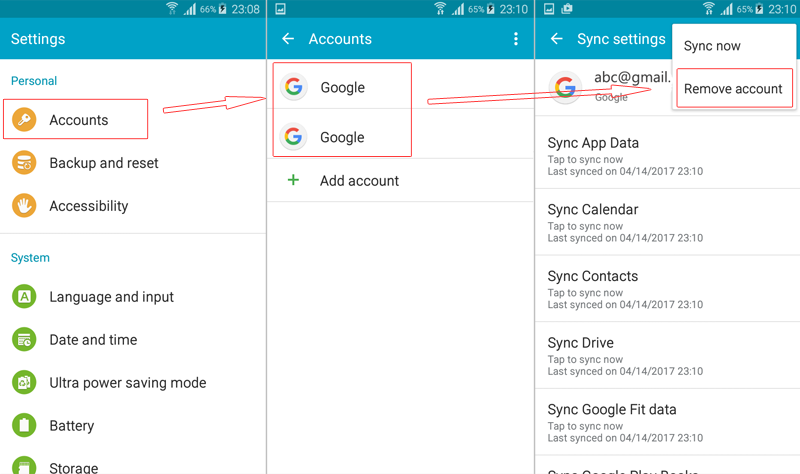
These steps are required by Android to allow device management configuration via ADB.
Step 2: Install ADB Tool on Your Computer
ADB (Android Debug Bridge) is a standard Android development tool that allows your computer to communicate with your device over USB.
Window OS:
-
Download Minimal ADB and Fastboot
-
Unzip and install it
-
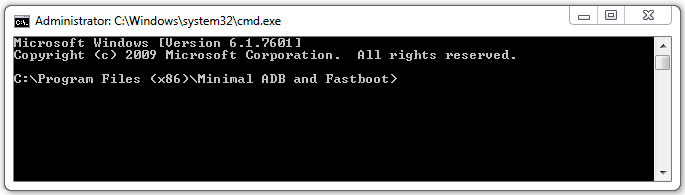
Open the command window and run:
cd C:\Program Files (x86)\Minimal ADB and Fastboot
MAC & Linux OS:
-
Download the ADB TOOL FOR MAC or ADB TOOL FOR LINUX for your operating system
-
Unzip
adb-tool.zip -
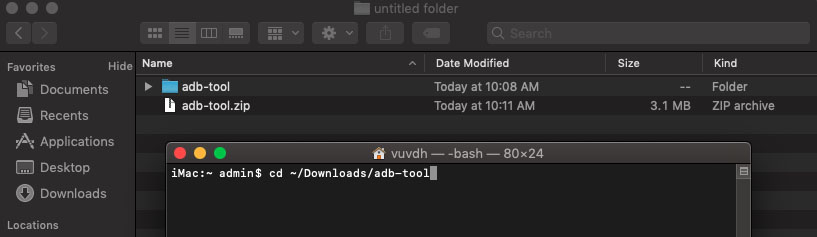
Open Terminal and run:
cd ~/Downloads/adb-tool
Step 3: Enable USB Debugging on Your Phone
-
Open Settings → About Phone
-
Tap Build Number seven times until Developer Mode is enabled
-
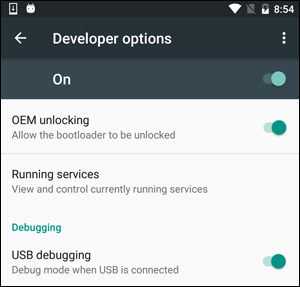
Go back to Settings → Developer Options
-
Enable USB Debugging
When connecting your phone to the computer, you will see a prompt:
-
Select “Always allow from this computer”
-
Tap OK
Verify ADB Connection
Connect your phone (only one device at a time) and run:
Window OS:
adb devices

MAC & Linux OS:
./adb devices
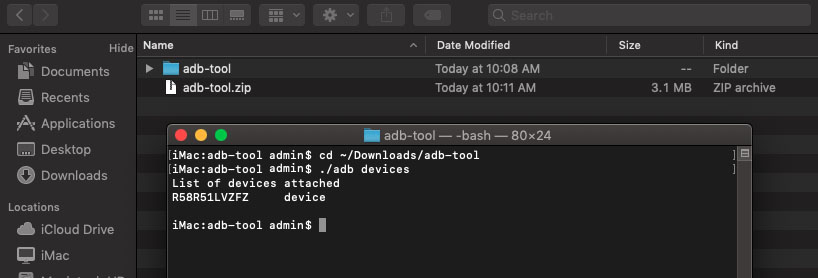
If your device appears in the list, ADB is working correctly. If not, make sure the correct USB drivers are installed.
Step 4: Configure App Freezer via ADB
Run one of the following commands:
Window OS:
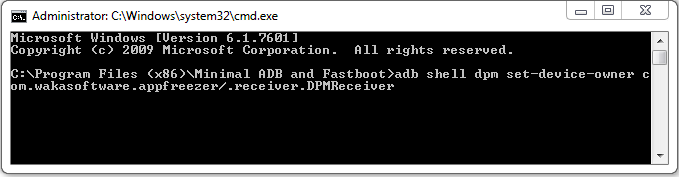
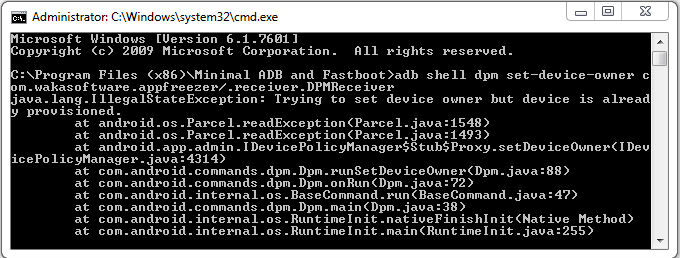
adb shell dpm set-device-owner com.wakasoftware.appfreezer/.receiver.DPMReceiver
or
adb shell dpm set-profile-owner com.wakasoftware.appfreezer/.receiver.DPMReceiver
MAC & Linux OS:
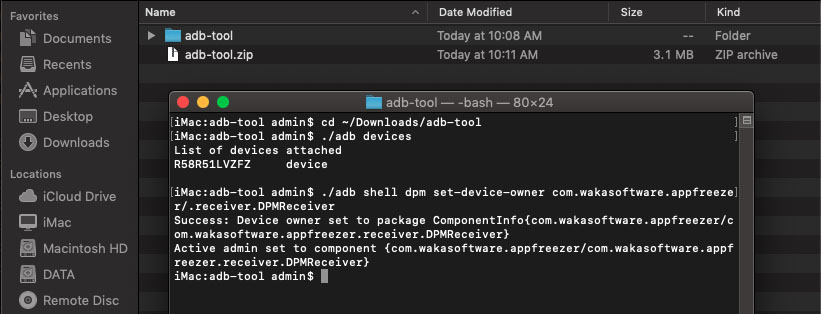
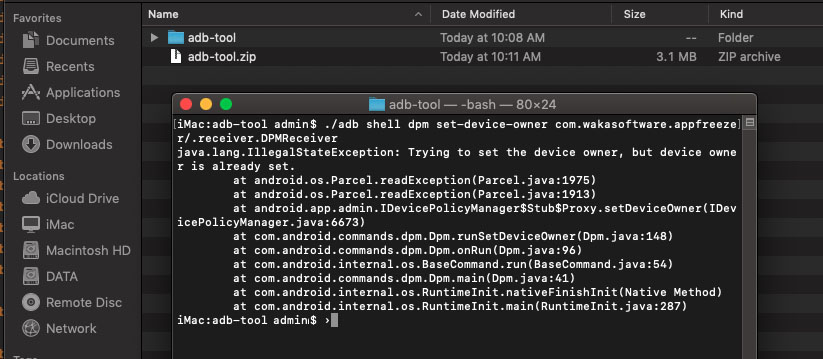
./adb shell dpm set-device-owner com.wakasoftware.appfreezer/.receiver.DPMReceiver
or
./adb shell dpm set-profile-owner com.wakasoftware.appfreezer/.receiver.DPMReceiver
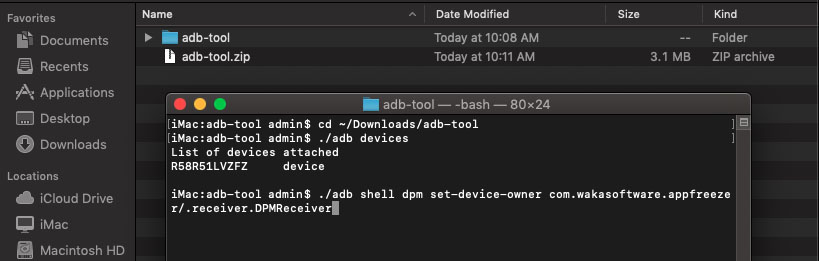
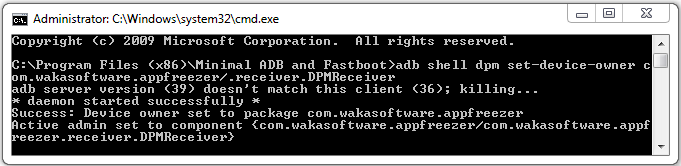
If the command completes without errors, the setup was successful.
Note:
-
Make sure no other apps on your device are using Device Owner permissions.
-
Please review Step 1 carefully before running these commands.
Step 5: Restart and Restore Your Settings
-
Restart your phone
-
Add back: Accounts, Screen lock and biometric security, SIM card, Work profile (if applicable)
You can now use App Freezer without root access.
How to Uninstall App Freezer
Option 1: From the App
-
Open App Freezer
-
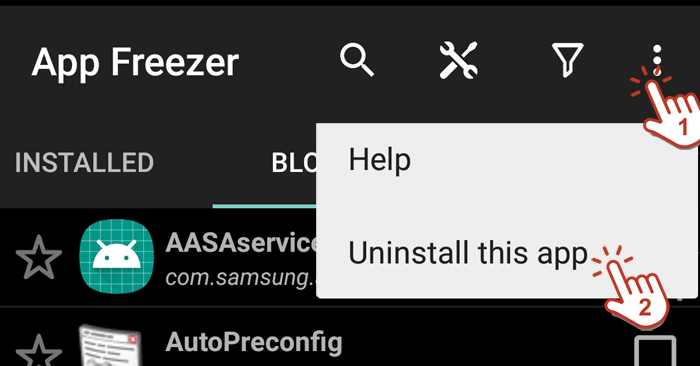
Tap Menu (⋮) → Uninstall this app
-
Repeat if required
Option 2: Using ADB
Run the following commands:
Window OS:
adb shell dpm remove-active-admin com.wakasoftware.appfreezer/.receiver.DPMReceiver
adb shell pm uninstall com.wakasoftware.appfreezer
MAC & Linux OS:
./adb shell dpm remove-active-admin com.wakasoftware.appfreezer/.receiver.DPMReceiver
./adb shell pm uninstall com.wakasoftware.appfreezer
Thank you!